
For the most part, the default configurations for SQL Server are pretty good. Yeah, there are a few you should definitely change (like say, the ones involving parallelism), but most of the others can be, uh, good enough as is.
But no one really likes “good enough,” right?
So most of us tweak some of these defaults to improve performance. Measure, adjust, document improvement, get a raise. Rinse repeat. And of course, if you’ve spend any time in SQL Server circles you’ll quickly learn one of the biggest improvements we can make for SQL Server isn’t even in SQL Server. It’s the Windows Power setting, which by default is set to “if you don’t need anything right now I’m gonna lay my processors down for a rest.”
Well, not exactly, but it’s definitely like that. The default Power Setting is “Balanced” which means during periods of lower activity the clock speeds of your CPUs are reduced to conserve power and save your battery.
Apparently all Windows installations think they are on laptops. SPOILER ALERT: your database servers are probably not laptops.
This means you may not be getting the actual clock speed from your CPUs you thought you were. Sad trombone. To rectify this all you need to do is go into the Windows Control panel and change the setting to “High Performance,” which will run your CPUs at maximum clock speed all the time. Huzzah!
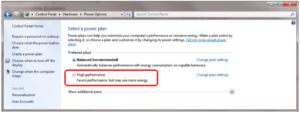
But…what if don’t want to log in to the server to change this?
A Change Would Do You Good
Here’s something for you. I had my own script to correct this, but I came across a more elegant script from Randolph West which I really like that takes the current ‘show advanced options’ and ‘xp_cmdshell’ configurations on your server into consideration. Randolph’s script only shows the current setting, so I added the ability to actually change the current plan to “High Performance” (assuming you have the appropriate permissions.)
SET NOCOUNT ON;


-- Collect current configuration settings

DECLARE

@isCmdShellEnabled BIT

, @isShowAdvanced BIT

, @isGettinFixed BIT;

-- Do you want to Fix this? Then SET this to 1

SET @isGettinFixed = 0;

SELECT @isCmdShellEnabled = CAST(value AS BIT)

FROM sys.configurations

WHERE name = 'xp_cmdshell';

SELECT @isShowAdvanced = CAST(value AS BIT)

FROM sys.configurations

WHERE name = 'show advanced options';

IF(@isShowAdvanced = 0) BEGIN

EXEC sp_configure 'show advanced options', 1;

RECONFIGURE;

END;

IF(@isCmdShellEnabled = 0) BEGIN

EXEC sp_configure 'xp_cmdshell', 1;

RECONFIGURE;

END;

-- Run xp_cmdshell to get power settings

IF OBJECT_ID('tempdb..#Power') IS NOT NULL DROP TABLE #Power;

CREATE TABLE #Power (PowerScheme varchar(1000));

INSERT #Power (PowerScheme)

EXEC xp_cmdshell 'powercfg /list';

SELECT PowerScheme FROM #Power WHERE RIGHT(LTRIM(RTRIM(PowerScheme)),1) = '*';

-- Set to High Performance

IF @isGettinFixed = 1 BEGIN

EXEC xp_cmdshell 'powercfg.exe /setactive 8c5e7fda-e8bf-4a96-9a85-a6e23a8c635c';

END;

-- If necessary, turn off 'xp_cmdshell'

IF(@isCmdShellEnabled = 0) BEGIN

EXEC sp_configure 'xp_cmdshell', 0;

RECONFIGURE;

END;

-- If necessary, turn off 'show advanced options'

IF(@isShowAdvanced = 0) BEGIN

EXEC sp_configure 'show advanced options', 0;

RECONFIGURE;

END;
If It Makes You Happy
The default (har har) for this script is just tell you what Windows Power plan your server is running, but if you feel the need (the need for speed) you can set @isGettinFixed = 1 to change the server to use the High Performance plan. No reboot required!
Just a suggestion, but before changing this it would probably be a good idea to show the results to your friendly neighborhood system administrators and speak with them about making sure they have this configured correctly for all builds involving SQL Server instances. And if you are running this against virtual instances, also ask those same folks to validate that the host servers for your SQL Instances are also set to use a High Performance plan. Gotta have highest performance CPUs all the way down.
ONE LAST TIP: try running this script against your Central Management Server to discover or correct the issue EVERYWHERE in one query!

I dig it. Thanks for the shout out.
Appreciate that, Randolph. Thank YOU!
Hi,
maybe the PowerShell dbatools is another good idea to set the Powerplan for several Server from Remote?
Set-DbaPowerPlan -ComputerName sql2017
https://docs.dbatools.io/#Set-DbaPowerPlan
Best Regards,
Volker
Absolutely, agree! That said, I’ve met a lot of folks who aren’t comfortable using PowerShell yet, so this post offers a bit of a T-SQL alternative.
How does Powerplan affects virtual servers? Since CPU are already virtualized and VMWare is controlling CPU resources, is it still worth modifying this setting? (Yes, my VMs are mostly in Balanced Mode and this is the reply I get from our Windows admins)
VMWare have a great resource for this, a best practices guide for architecting SQL Server on VMWare.
The guide covers the configuration necessary for Windows and VMware, where power is concerned, but there’s dozens of recommendations in here for you and your Windows admins to consider.
https://blogs.vmware.com/apps/2016/03/updated-architecting-microsoft-sql-server-on-vmware-vsphere-best-practices-guide.html
I used PowerShell, then dumped to a table for viewing pleasures first. We had over 3,200 SQL servers to query. Built a quick csv file and loaded it into a table as last step. The results were shocking to say the least. I liked Cindy Gross’s article and description regarding why Balanced mode is No Bueno.
foreach ($server in get-content “E:\WMI\PowerSettings\Serverbatch.txt”)
{
$PowerPlanlogfile=”E:\WMI\PowerSettings\output\PowerPlanlogfile2_10182018.txt”
Write-host “Getting Power Plan information from $server.” -ForegroundColor Green
$query = “Select ElementName from Win32_PowerPlan WHERE IsActive = ‘true'”
$currentplan = Get-WmiObject -Namespace Root\CIMV2\Power -ComputerName $server -Query $query -ErrorAction SilentlyContinue
$currentplan = $currentplan.ElementName
$currentplan=($server + “,” + $currentplan)
$currentplan | Out-File -FilePath $PowerPlanlogfile -Append
}
Nice script, but do you always leave empty space between every single line or is it just formatting on the website?